
Important Step:
Sometimes your computer's Outlook App may have this bug with the password box repeated popups or keeps asking for the password.
First, make sure the Outlook App is closed.
Then download and run this (OutlookFix.zip)
Note: Before adding an email account to your computer, Microsoft recommends you run a manual installation of the following software updates first:
Windows Updates
Optional / Performance Window Updates
MS Office Updates
Important Note: It is very important to restart the computer after installing any Windows Updates or Office Updates
After you have done the above manual Updates & Restarted the computer, then continue with the following.
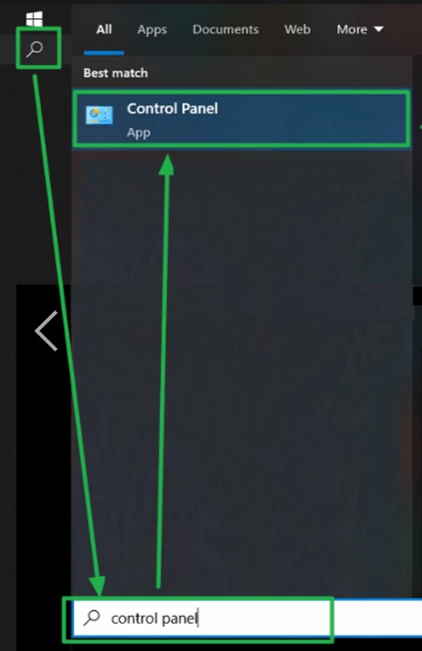
Windows Desktop Search box > type 'control panel' > click the result that says 'control panel'
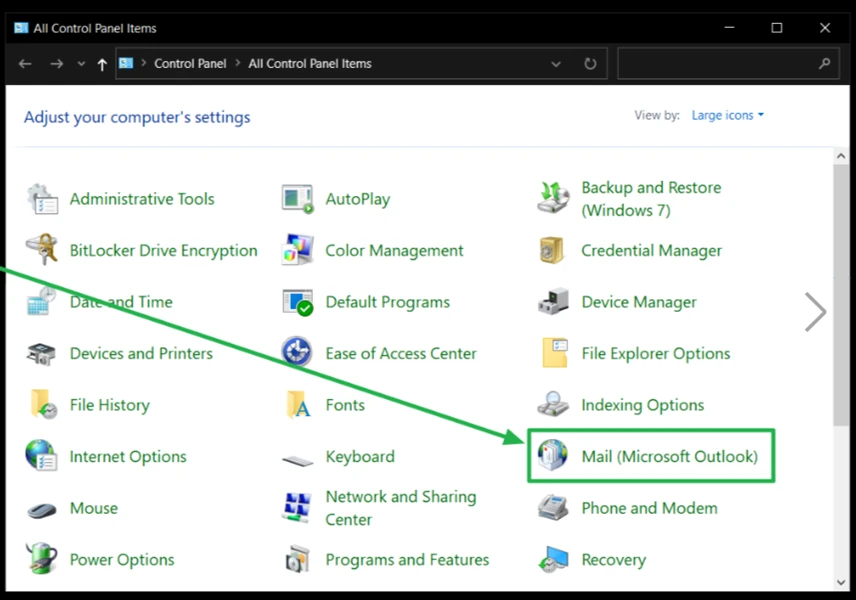
The Control Panel window will open > click Mail
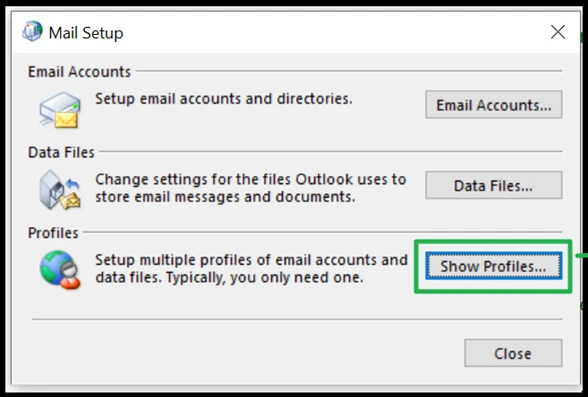
When the Mail Setup box opens, follow the screen guide below.
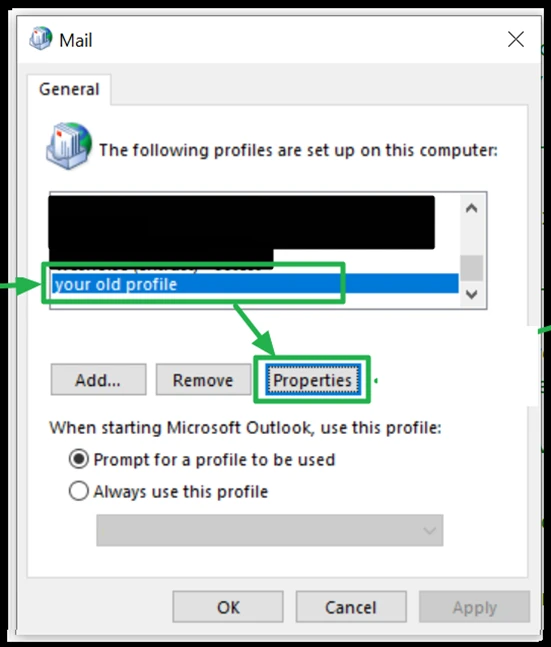
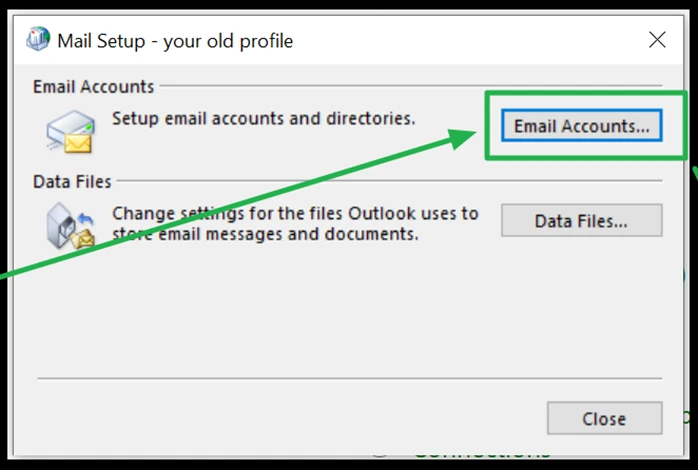
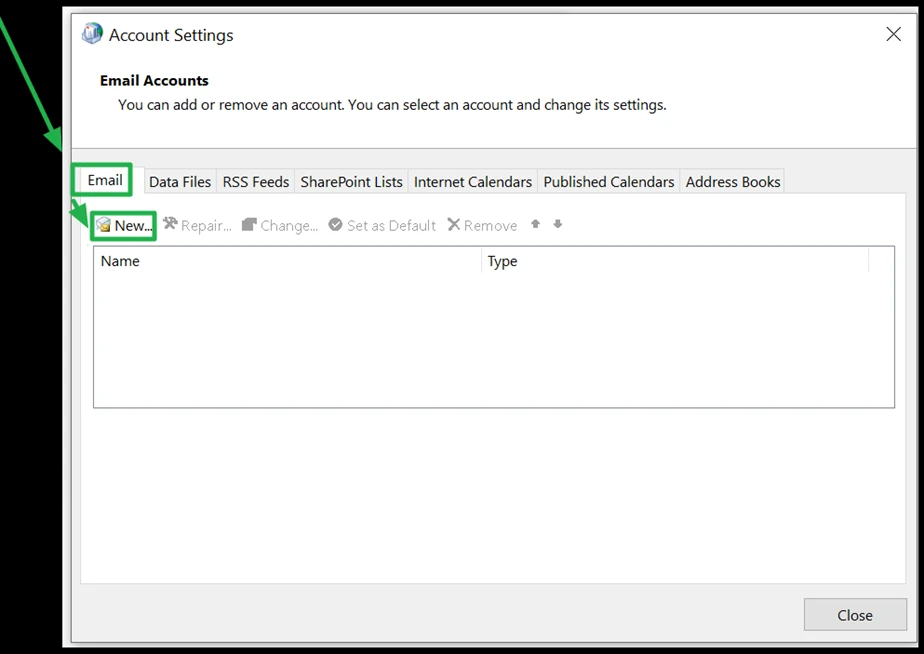
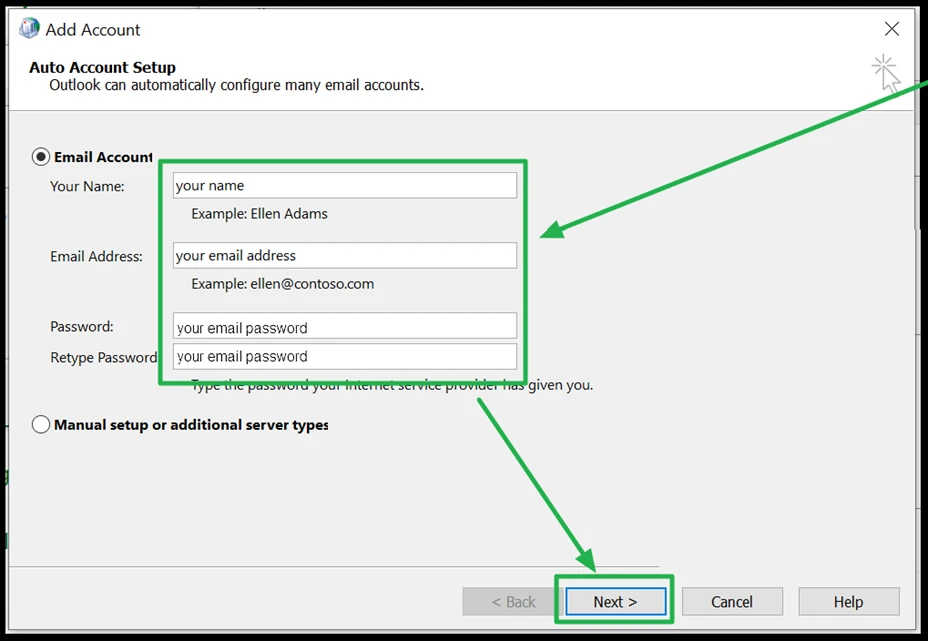
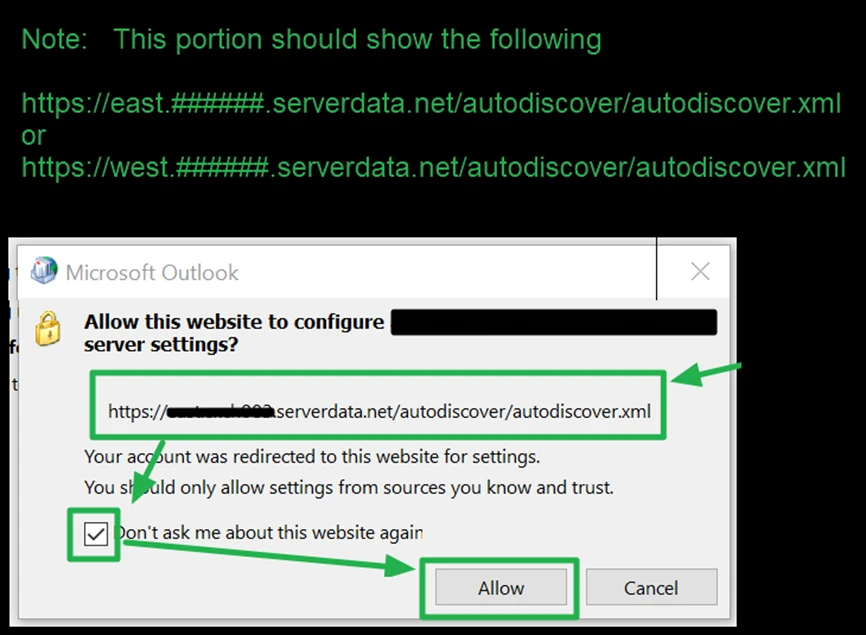
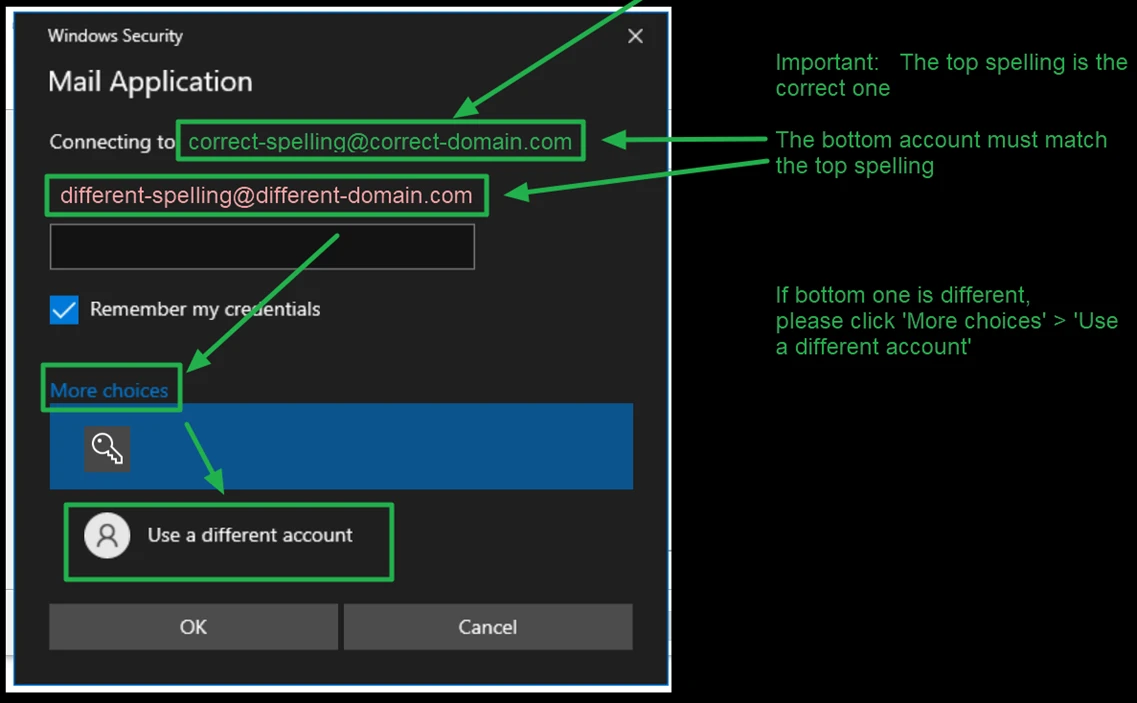
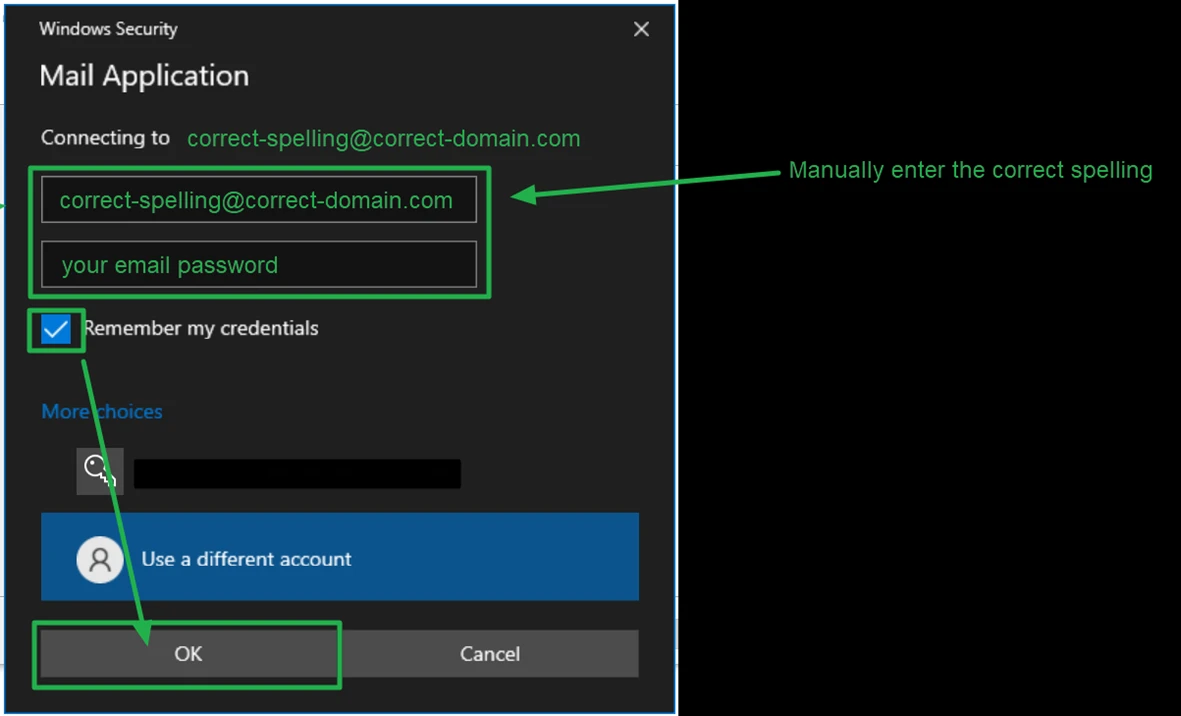
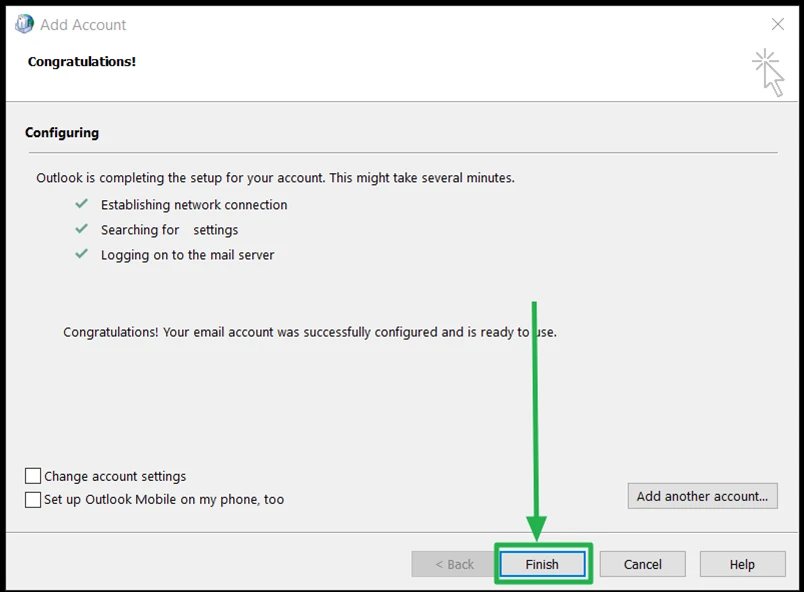
Note: Some popup boxes may appear during setup
If the popup prompts for password, double-check the address spelling in the popup box matches the one you are adding. Then enter the email password above.
If the popup prompts to allow a security certificate for ###.serverdata.net , click 'allow'.
